

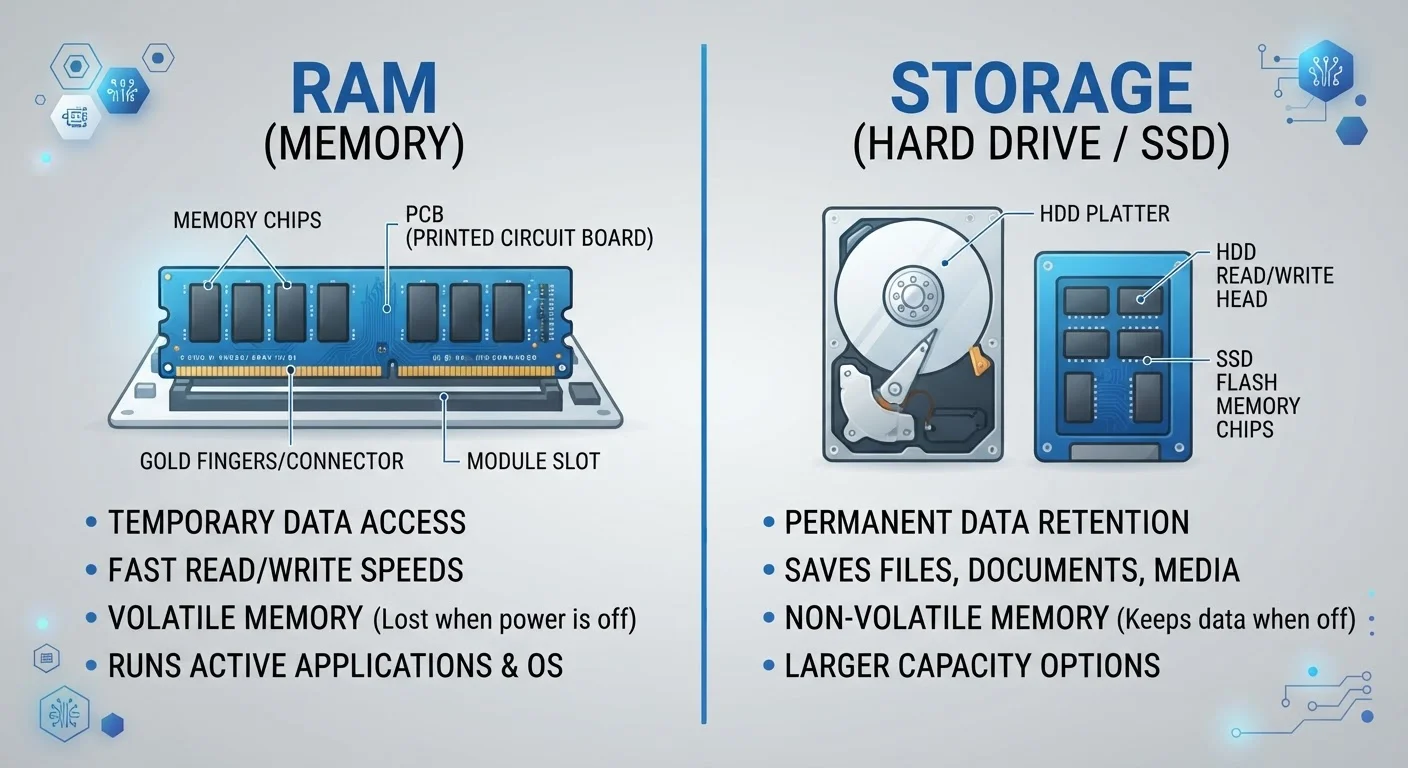
Key Takeaways
- RAM holds data temporarily while your device is running; storage holds data permanently.
- More RAM helps your device multitask smoothly; more storage means room for more files.
- Both RAM and storage are measured in gigabytes, which is a common source of confusion.
- Running low on RAM causes slowdowns; running low on storage limits what you can save.
- Upgrading RAM and upgrading storage solve different performance problems.
Option A
RAM (Random Access Memory)
Your device's short-term, high-speed working memory.
Best for: Handling the data your device is actively using right now - open apps, running processes, and live computations.
Option B
Storage (HDD / SSD)
Your device's long-term memory for everything you keep.
Best for: Holding files, apps, photos, and the operating system permanently, even when the device is powered off.
If your device freezes or lags when you have many apps or browser tabs open
RAM (Random Access Memory)
That symptom points to RAM running out of working space. More RAM lets your device juggle more active tasks without slowing down.
If you keep getting 'storage full' warnings and can't save new files or install apps
Storage (HDD / SSD)
Your long-term capacity is exhausted. Expanding or upgrading storage gives you space to keep more data permanently.
If you want to understand why your device feels sluggish overall
RAM (Random Access Memory)
Insufficient RAM is one of the most common causes of everyday slowdowns. Review our guide on what causes device slowdowns for a fuller picture.
The Core Difference: Temporary vs. Permanent
Think of RAM as a desk and storage as a filing cabinet. When you sit down to work, you pull folders out of the cabinet and spread them on the desk. The desk (RAM) gives you fast, immediate access to whatever you're actively working on. When you're done, you put everything back in the cabinet (storage) for safekeeping.
RAM (Random Access Memory) is your device's short-term workspace. It holds data that the processor needs right now - the website you're viewing, the document you're editing, the game currently running. RAM is extremely fast but completely temporary: the moment you power off your device, everything in RAM disappears.
Storage - whether a traditional hard disk drive (HDD) or a solid-state drive (SSD) - is where data lives long-term. Your photos, installed apps, operating system, and downloaded files all reside in storage. Unlike RAM, storage retains data without power. For a deeper look at how SSD technology works, see how solid-state drives replaced spinning disks.
Both are measured in gigabytes (GB), which is exactly where the confusion starts - same unit, completely different jobs.
How RAM and Storage Affect Performance
RAM and storage influence your experience in distinct ways, and recognizing which one is the bottleneck matters before drawing any conclusions.
| Criterion | RAM | Storage |
|---|---|---|
| Purpose | Active working memory | Long-term data retention |
| Data persistence | Erased when powered off | Retained without power |
| Speed | Extremely fast | Slower (SSD faster than HDD) |
| Typical capacity | 4 GB - 64 GB | 128 GB - several terabytes |
| Low-resource symptom | Lag when multitasking | "Storage full" errors |
| Holds your photos/files? | No | Yes |
When RAM is the constraint: Your device has to constantly shuffle data in and out of storage to compensate, a process sometimes called swapping or paging. This is far slower than reading from RAM directly and is one of the most recognizable causes of sluggishness. If your device slows noticeably when you open a second or third app, RAM is the likely culprit. Device slowdowns explained covers this process in detail.
When storage is the constraint: You see 'disk full' errors, can't install updates, and may notice slower app launches - especially on older HDDs where read/write speeds are significantly lower than SSDs. Storage fullness doesn't affect your ability to multitask with what's already open; it affects what you can keep and access over time.
Understanding which resource you're short on is essential context when assessing any device - including when comparing form factors. Our article on tablet vs. laptop hardware differences illustrates how these specs play out across device types.
8 GB
Common baseline RAM in modern laptops
Many mainstream laptops ship with 8 GB of RAM, though demanding workloads - video editing, large spreadsheets - often benefit from 16 GB or more.
~10x
Speed advantage of RAM over SSD
RAM operates at memory bandwidths far exceeding even fast NVMe SSDs, which is why the processor uses RAM as its immediate working space.
Where Files Actually Go - and Where They Don't
A common misconception is that saving a file 'uses up' RAM. It doesn't. When you save a document, you're writing from RAM into storage. RAM is then freed up. The file now lives on your storage drive, not in RAM, until you open it again.
Similarly, deleting a file from storage doesn't give you more RAM. These pools are entirely separate. Clearing RAM requires closing apps and processes; clearing storage requires deleting or moving files.
One nuance worth knowing: if your storage drive is nearly full, some operating systems struggle to create the temporary files they need to function efficiently - which can produce symptoms that feel like a RAM problem but are actually a storage problem. Keeping a reasonable buffer of free storage space (typically at least 10-15% of total capacity) helps avoid this overlap.
For questions about where your files physically live - on your device versus in the cloud - cloud vs. local storage explains the tradeoffs clearly. And if you're curious how the processor interacts with both RAM and storage, processor specs and everyday performance rounds out the picture.