

Key Takeaways
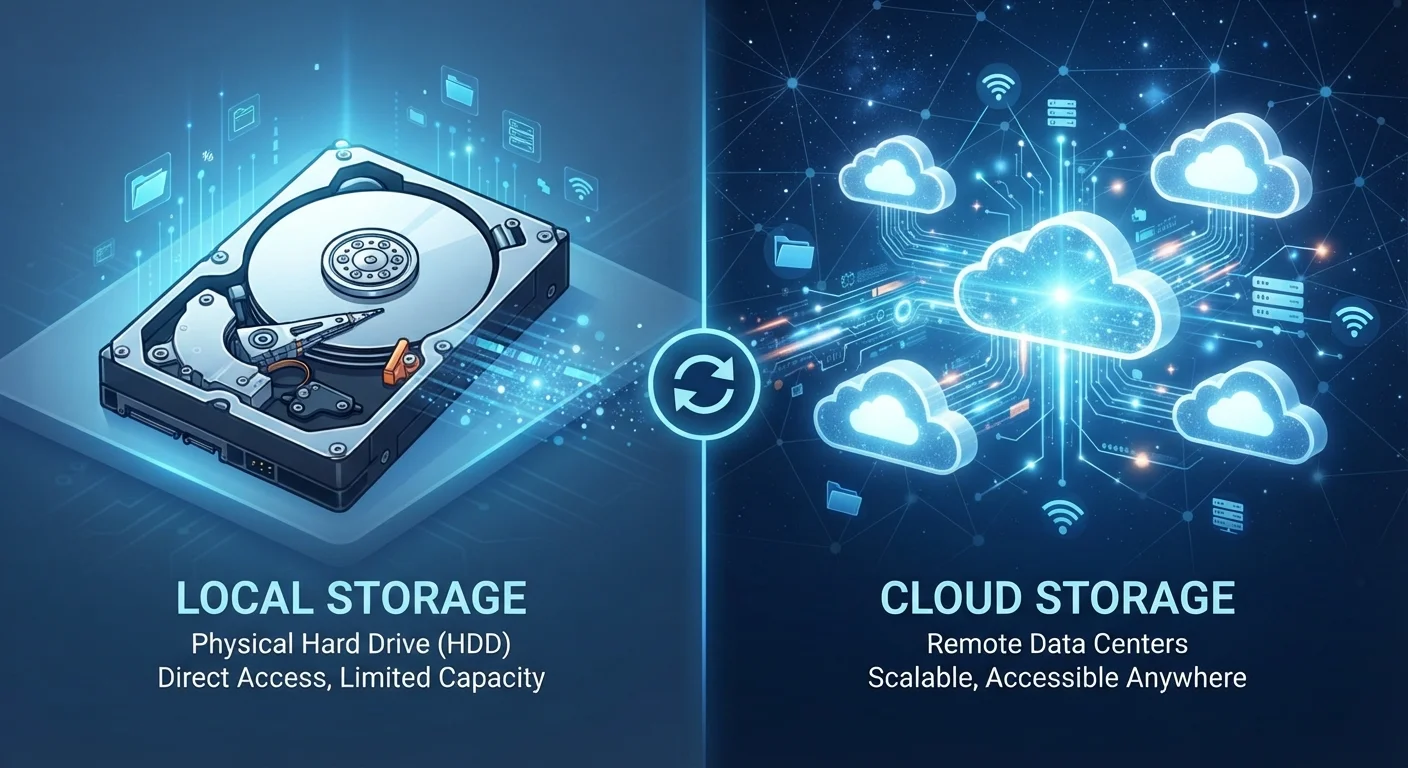
- Cloud storage keeps your files on remote servers managed by a third party, accessed via the internet.
- Local storage keeps files on physical hardware you own - hard drives, SSDs, or USB drives.
- Cloud storage excels at multi-device access and automatic backups; local storage excels at speed and privacy.
- Both approaches carry distinct failure risks: server outages vs. physical device loss or damage.
- Many users benefit from using both methods together as a layered backup strategy.
Option A
Cloud Storage
The always-accessible, off-device option.
Best for: Users who need files available across multiple devices or want automatic off-site backup.
Option B
Local Storage
The direct, self-contained approach.
Best for: Users who prioritize full control, offline access, and privacy without relying on an internet connection.
If you work across multiple devices or locations
Cloud Storage
Cloud storage lets you access the same files from a laptop, phone, or tablet without manual transfers, as long as you have an internet connection.
If you handle sensitive files and want maximum privacy
Local Storage
Files stored only on hardware you control are not transmitted to or stored on third-party servers, reducing exposure to external data breaches.
If you need fast access to large files like video or raw photos
Local Storage
Accessing files directly from an SSD or hard drive is significantly faster than downloading from a remote server, especially for large assets.
If you want automatic backup without manual effort
Cloud Storage
Most cloud services sync files automatically, meaning a recent copy exists off-device even if your hardware fails.
If long-term reliability matters most to you
Both (layered strategy)
Neither option is immune to failure. Using local and cloud storage together provides redundancy against hardware loss, theft, and server outages.
What Each Term Actually Means
Local storage refers to any physical hardware attached to - or built into - your device that holds data: internal hard drives, solid-state drives (SSDs), USB flash drives, and SD cards. When you save a document to your desktop, it physically writes to one of these components. The file doesn't go anywhere outside your device unless you deliberately send it.
Cloud storage means your files are transmitted over the internet and stored on servers operated by a third-party company. When you save a photo to a cloud service, it travels from your device to a data center - often located in a completely different state or country - where it is stored on that company's hardware. You access it later by downloading or streaming it back to your device.
To understand what physically sits inside your device, our explanation of solid-state drives covers the underlying technology. And if you're unsure how storage differs from RAM, this overview of RAM vs. storage clears up a very common point of confusion.
| Criterion | Cloud Storage | Local Storage |
|---|---|---|
| File location | Remote servers (third-party) | Your own hardware |
| Internet required | Yes, to access files | No |
| Access speed | Depends on connection speed | Very fast (especially SSD) |
| Multi-device access | Built-in and seamless | Requires manual transfer |
| Privacy | Managed by provider's policies | Fully user-controlled |
| Ongoing cost | Subscription fees typical | One-time hardware cost |
| Primary failure risk | Outage, breach, service closure | Hardware failure, theft, damage |
| Automatic backup | Common feature | Requires manual setup |
Tradeoffs Worth Understanding
Access and convenience: Cloud storage shines when you use multiple devices. A file saved on your phone appears on your laptop within seconds. Local storage requires manual transfer - a cable, USB drive, or home network - to move files between machines.
Speed: Local storage wins decisively here. Reading a large video file from an SSD takes milliseconds. Downloading that same file from a cloud server depends on your internet speed and can take considerably longer, especially on slower connections.
Privacy and control: With local storage, you decide who sees your files. With cloud storage, you are entrusting a company with your data. That company's terms of service, security practices, and compliance with legal requests all become relevant. Data breaches affecting cloud providers have affected millions of users over the years.
60%+
Share of enterprise data stored in the cloud
According to Flexera's annual State of the Cloud report, a majority of organizational workloads and data have shifted to cloud environments.
~30%
Hard drive failure rate within 3 years
Backblaze's long-running hard drive reliability studies have consistently found meaningful annual failure rates that compound significantly over a three-year period.
Reliability: Local storage fails when hardware fails - drives can fail mechanically or electronically. Cloud storage fails when you lose internet access, when the service has an outage, or in rare cases when a company shuts down. Both scenarios are real and worth planning for.
Cost: Local storage is a one-time hardware cost. Cloud storage typically involves ongoing subscription fees for meaningful amounts of space beyond a free tier. Over several years, costs can be comparable depending on storage capacity needs.
Why Most People Should Use Both
The 3-2-1 backup principle - a widely referenced guideline in data management - recommends keeping three copies of important files: two on different local media types, and one off-site. Cloud storage effectively serves as that off-site copy.
Relying exclusively on local storage means a single hardware failure, theft, or fire could wipe out irreplaceable files. Relying exclusively on cloud storage means a lost internet connection, a subscription lapse, or a service shutdown could cut off access entirely.
A practical approach: store working files locally for speed, sync important documents and photos to a cloud service for redundancy, and periodically back up critical data to an external drive stored separately from your primary device. This layered approach addresses the distinct failure modes of each method without requiring a large investment in either direction.
Understanding where your files physically live - and what it takes to lose them - is one of the most practical things you can do to protect your digital life.