

Key Takeaways
- An operating system is the software layer that makes hardware usable by applications and people.
- The OS manages the processor, memory, storage, and connected devices simultaneously.
- Every device - phones, laptops, smart TVs - runs some form of operating system.
- Keeping your OS updated is one of the most effective steps for device security.
- Understanding your OS helps you troubleshoot problems and make informed decisions about your devices.
Start here
What an Operating System Actually Is
Next
The Core Jobs an OS Handles
Go deeper
How the OS Manages Your Hardware
Broaden your view
Common Operating Systems and Where They Run
Put it into practice
Why Updates and Security Matter at the OS Level
What an Operating System Actually Is
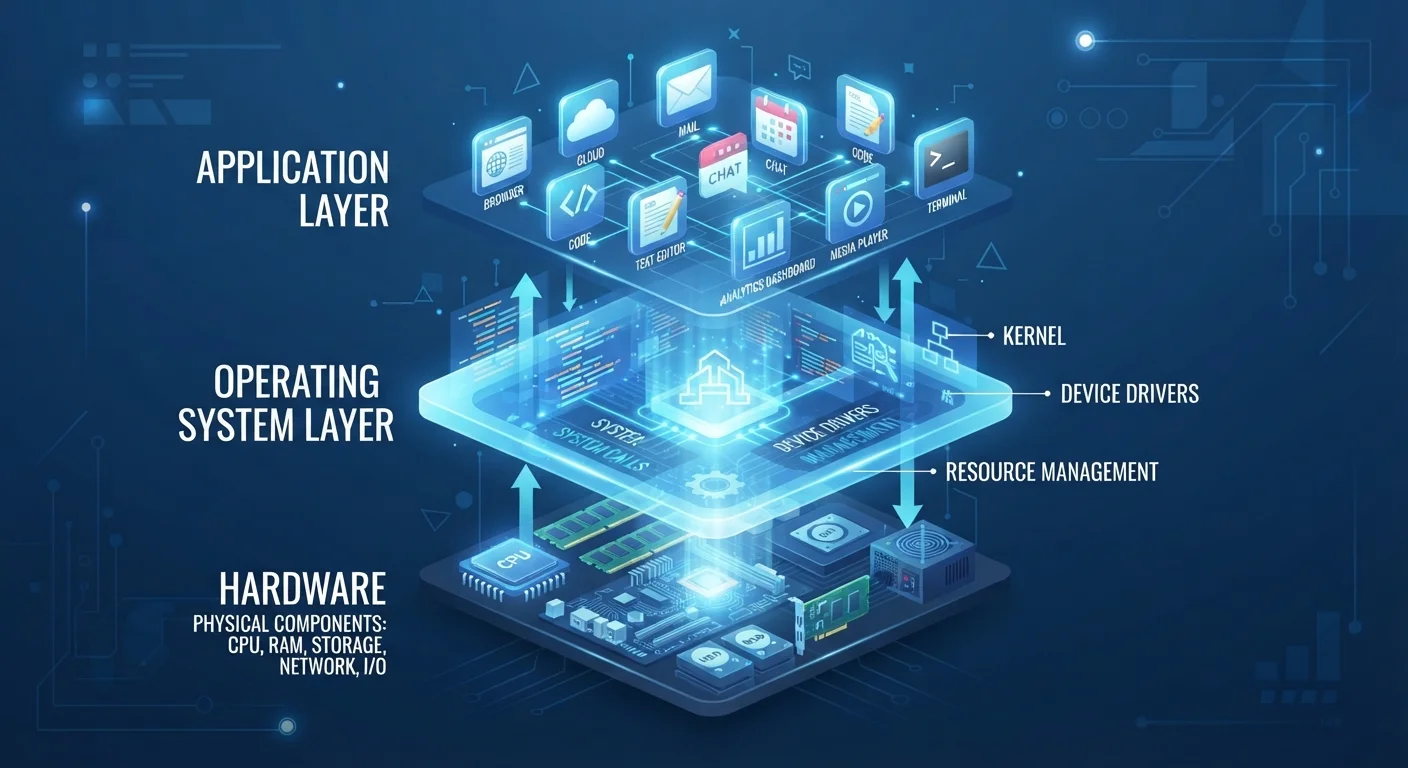
Every device you interact with digitally - a laptop, a smartphone, a smart TV - relies on a fundamental piece of software called an operating system (OS). The OS is the intermediary between raw hardware (circuits, chips, memory) and everything you actually do, from opening a browser to playing music.
Without an OS, a computer would be a collection of powerful components with no way to coordinate. The OS provides a consistent, stable environment so that applications don't have to individually manage every hardware detail. Developers write apps to work with the OS; the OS handles the rest.
A useful mental model: think of the hardware as a building, the OS as the building's management team, and apps as the businesses renting space inside. The businesses interact with management, not directly with the building's electrical systems or plumbing. For a deeper look at how hardware components fit together in one common device, see what's inside a modern smartphone.
Operating System (OS)
The core software that manages hardware resources and provides a platform for applications to run. It acts as the essential go-between for hardware and the programs you use.
Kernel
The innermost part of an OS that has direct control over hardware. It handles critical tasks like managing memory and scheduling processor time.
Driver
A small program the OS uses to communicate with a specific hardware component, such as a printer, graphics card, or network adapter.
Process
A running instance of a program. The OS manages multiple processes simultaneously, allocating processor time and memory to each.
File System
The method the OS uses to organize, store, and retrieve data on a storage drive. It's the structure that turns raw storage space into named folders and files.
RAM (Random-Access Memory)
Short-term, fast-access memory that the OS uses to hold data for programs that are currently running. Data in RAM is lost when the device powers off.
The Core Jobs an OS Handles
Operating systems perform several distinct functions simultaneously, all largely invisible to users during normal operation:
- Process management: The OS schedules and tracks every running program, deciding which gets processor time and when. This is why you can have a browser, a music app, and a download running at once.
- Memory management: RAM (random-access memory) is a limited resource. The OS allocates memory to active programs and reclaims it when they close, preventing any one app from monopolizing the system.
- File system management: Files need to be stored, named, organized, and retrieved reliably. The OS provides a file system - the structured method by which data is written to and read from storage drives.
- User interface: Whether it's a graphical desktop or a touch-based home screen, the OS renders the visual environment you navigate.
- Security and access control: The OS enforces which users and apps can access what data, providing the foundation for device security.
Understanding these roles helps explain many common tech frustrations. A computer that's slow to open apps is often experiencing a memory or process management bottleneck - not a broken app.
Monitor What's Running in the Background
Most operating systems include a built-in tool to see which processes are active and how much memory or CPU each one uses - Task Manager on Windows, Activity Monitor on macOS. If your device feels sluggish, opening this tool can quickly reveal whether a specific process is consuming disproportionate resources. Closing unused apps and browser tabs is often enough to restore responsiveness.
How the OS Manages Your Hardware
Hardware components - the processor, storage drive, network card, display, and peripherals - all speak different technical languages. The OS uses small programs called drivers to communicate with each component in its native language, then presents a unified interface to apps.
When you plug in a USB device, the OS detects it, loads the appropriate driver, and makes it accessible. When an app requests data from the internet, the OS routes that request through the network driver without the app needing to know anything about your specific Wi-Fi chip.
The processor (CPU) sits at the center of this coordination. The OS kernel - its innermost core - runs with the highest level of hardware access, managing CPU instructions, memory addresses, and input/output operations. Apps run in a more restricted mode and must ask the kernel for access to hardware resources. This separation is intentional: it prevents buggy or malicious apps from destabilizing the entire system. For context on how processor specifications influence real-world performance, see how CPU specs affect everyday device feel.
Common Operating Systems and Where They Run
Operating systems are purpose-built for the hardware they run on. The most widely encountered include:
- Windows
- Developed by Microsoft; dominates desktop and laptop computing in business and home environments. Runs on a wide variety of hardware from different manufacturers.
- macOS
- Apple's OS for Mac computers. Tightly integrated with Apple-designed hardware, which allows deep optimization between software and the underlying silicon.
- iOS / iPadOS
- Apple's mobile and tablet operating systems. Closed ecosystems where apps must be distributed through Apple's App Store.
- Android
- Google's open-source mobile OS, used by a broad range of device manufacturers. The most widely deployed smartphone OS globally.
- Linux
- Open-source and highly adaptable. Powers most of the world's web servers, underpins Android, and appears in consumer form through ChromeOS and various desktop distributions.
The choice of OS shapes what software you can run and how the device behaves. This distinction is especially relevant when comparing device categories - the OS architecture is one key difference covered in a deeper look at how tablets and laptops differ.
Open Source vs. Closed Source OSes
Some operating systems, like Linux, are open source - their underlying code is publicly available and can be reviewed or modified by anyone. Others, like Windows and macOS, are proprietary, meaning the source code is private. This distinction affects how quickly vulnerabilities are discovered and patched, how much users can customize the OS, and who controls the software's direction. Neither model is inherently superior for all use cases.
Why Updates and Security Matter at the OS Level
Because the OS controls hardware access and enforces security boundaries, vulnerabilities at the OS level are serious. Attackers who find a flaw in the OS kernel can potentially bypass protections that individual apps rely on. This is why OS vendors release security patches - updates that close known vulnerabilities before they can be exploited at scale.
Keeping your OS updated is a foundational protective habit. Most modern operating systems can be configured to update automatically, which removes the burden of manual checks. Beyond security, updates also deliver driver improvements, compatibility fixes, and performance refinements.
Users sometimes delay updates out of concern that changes will disrupt familiar workflows. While that concern isn't entirely without basis, the security risk of remaining on an outdated OS version typically outweighs the inconvenience of adjusting to interface changes. For a broader look at security misconceptions that affect everyday users, see common tech myths that affect real security.
Don't Ignore End-of-Support Notices
When an OS reaches its end-of-support date, the vendor stops issuing security patches. Continuing to use an unsupported OS version means new vulnerabilities will go unaddressed indefinitely. If your device can no longer receive OS updates, consider whether upgrading the hardware is a realistic option - running outdated software on a network-connected device carries meaningful risk.