

Key Takeaways
- Two-factor authentication (2FA) requires both a password and a second proof of identity to access an account.
- Authenticator apps generally provide stronger protection than SMS-based verification codes.
- Most major platforms - email, banking, social media - support 2FA in account security settings.
- Saving backup codes when setting up 2FA prevents being locked out if you lose your device.
- Enabling 2FA takes under five minutes per account and significantly reduces unauthorized access risk.
What you will need
What Two-Factor Authentication Actually Does
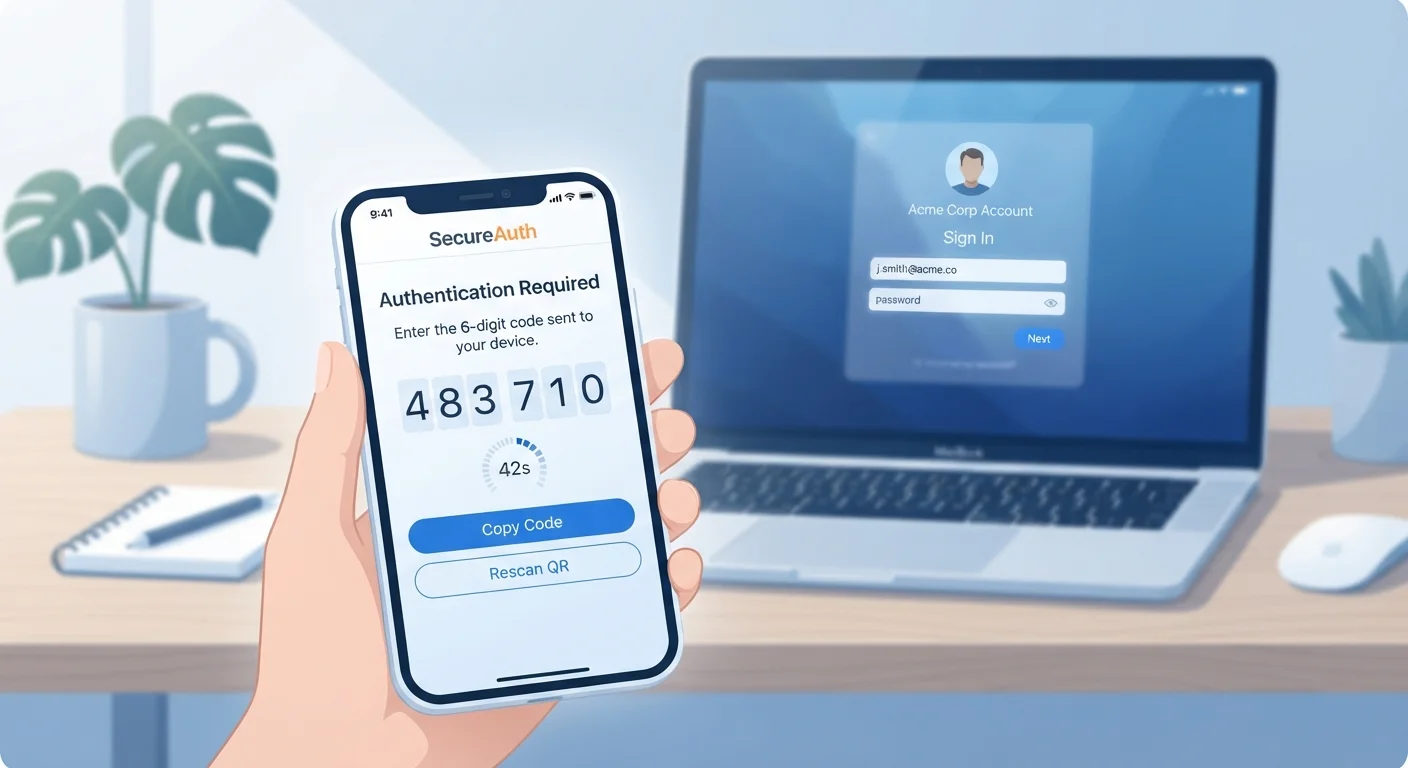
Two-factor authentication (2FA) is a security method that requires you to prove your identity in two distinct ways before gaining access to an account. The first factor is typically your password - something you know. The second factor is something you have (like a phone) or something you are (like a fingerprint).
Think of it like an ATM: you need both the card and the PIN. Even if someone steals your password, they can't get in without that second factor. This makes 2FA one of the most effective defenses against unauthorized account access.
Common second-factor types include:
- SMS codes: A one-time code sent to your phone via text message.
- Authenticator apps: Apps like Google Authenticator or Authy generate time-sensitive codes without requiring cell service.
- Hardware keys: Physical USB or NFC devices that you plug in or tap to verify identity.
- Biometrics: Fingerprint or face recognition used as a secondary check on some devices.
SMS codes are convenient but carry some risk - phone numbers can be hijacked through a technique called SIM swapping. Authenticator apps are generally considered more secure because the codes never travel over the cellular network. For most people, an authenticator app strikes the right balance between security and convenience.
To understand how 2FA fits into a broader security picture, see our guide to passwords, PINs, and passphrases and our article on what encryption means for your personal data.
Prioritize Email and Financial Accounts First
Your email account is often the master key to your digital life - most services send password reset links there. Securing your email with 2FA first limits the damage if any other account is compromised. Financial accounts, including online banking, should be your immediate next priority.
Before You Begin
A few things to have ready before enabling 2FA across your accounts:
What you will need
It's also worth noting that each service manages 2FA independently - enabling it on your email doesn't automatically protect your bank account. Plan to work through your accounts one at a time.
Don't Skip the Backup Codes Step
If you lose or replace your phone without transferring your authenticator app, you could be locked out of your accounts permanently. Every service that offers 2FA also provides backup or recovery codes during setup - treat these as seriously as you would a house key. Store them somewhere offline and accessible only to you.
How to Enable 2FA: Step-by-Step
The steps below follow the general pattern used by most major platforms. The exact wording and menu names vary by service, but the process is consistent enough that once you've done it once, subsequent accounts become straightforward.
Download an authenticator app
Install an authenticator app on your smartphone from your device's official app store. These apps generate time-based one-time passwords (TOTP) - six-digit codes that refresh every 30 seconds. You'll use this app to verify your identity when logging in.
Navigate to security settings on the target account
Log in to the account you want to protect. Look for a section labeled Security, Privacy & Security, or Account Settings. Within that section, find an option for Two-Factor Authentication, Two-Step Verification, or Login Verification - the naming varies by platform.
Choose your second-factor method
Select your preferred verification method. Most services offer SMS, authenticator app, or both. Choose Authenticator App when available for stronger protection. The platform will display a QR code on screen.
Scan the QR code with your authenticator app
Open your authenticator app and select the option to add a new account (often a + icon). Choose Scan QR code and point your phone's camera at the code displayed on screen. The app will immediately begin generating six-digit codes for that account.
Enter the confirmation code and save backup codes
Type the current six-digit code from your authenticator app into the confirmation field on the platform's setup page. This verifies the link is working. The platform will then display a set of backup codes - one-time-use codes for account recovery if you lose your phone. Save these immediately in a secure location.
Repeat for other priority accounts
Work through your most sensitive accounts in order of importance: email first (since it often controls password resets for other services), then financial accounts, cloud storage, and social media. Each account will follow the same general process.
For additional habits that reinforce account security, see keeping personal devices secure without a technical background.